How to customize your placements board
The placements board starts with our default columns, but it's your board. You can hide the columns you don't use and add up to 10 of your own steps — for example, "Showing booked".
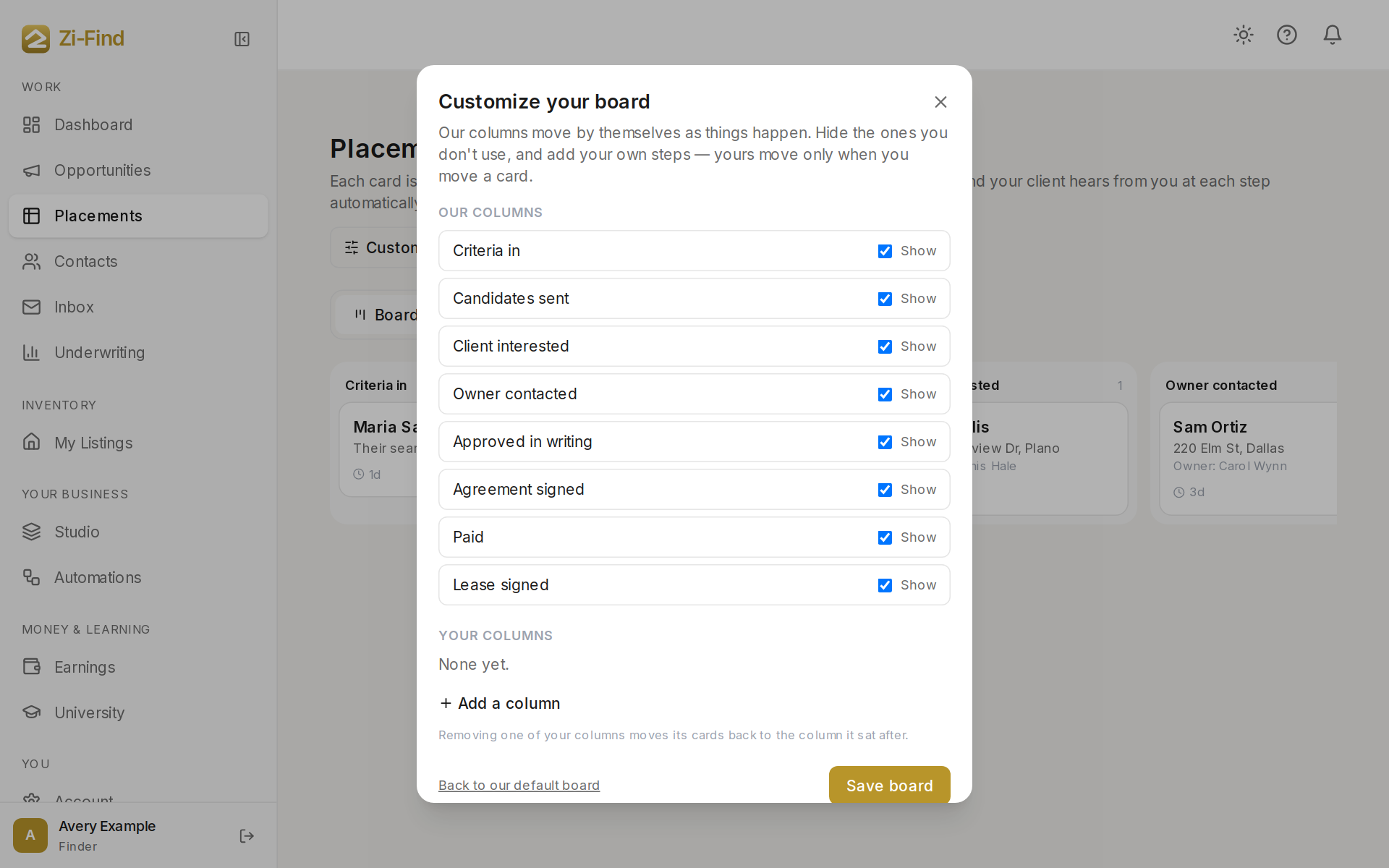
Open the settings
- Click Placements in the sidebar.
- On the Board tab, click Customize board.
The window has two parts: Our columns and Your columns.
Hide a column
- Under Our columns, untick Show next to any column you don't use.
- Click Save board.
Hiding a column never loses cards. If any cards sit in a hidden column, the board says how many ("2 cards are in columns you've hidden") with a Show them link, and hidden columns are marked "(hidden)" while shown.
Our columns keep their meaning even when hidden: the facts that move cards and the emails your clients get still work the same way.
Add your own column
- Under Your columns, click Add a column.
- Type a name (up to 40 characters), for example "Showing booked".
- Under Goes after, choose where it sits: The start of the board, or after any of our columns except Lease signed.
- Add more if you like — up to 10.
- Click Save board.
How your columns behave
- They move only when you move a card. Nothing on the platform moves a card into your column.
- They send no emails. Client emails are tied to our columns only.
- Facts can carry a card past them. If a card sits in your column and something happens that belongs to a later stage (for example, the owner approves in writing), the card moves forward to that stage as usual.
Remove or reset
- Remove one of your columns, then Save board. Its cards move back to the column it sat after.
- Back to our default board resets everything: all our columns shown and your columns removed.
Good to know
- Your board settings are yours only and don't change anything your clients see.
- Moving a card by hand into one of our columns can send that stage's client email. See Your client emails.
Was this helpful?
Need more help?
Customers get support inside their account. Sign in, then open Help or the chat bubble in the corner.