The placements board: every client from criteria to signed lease
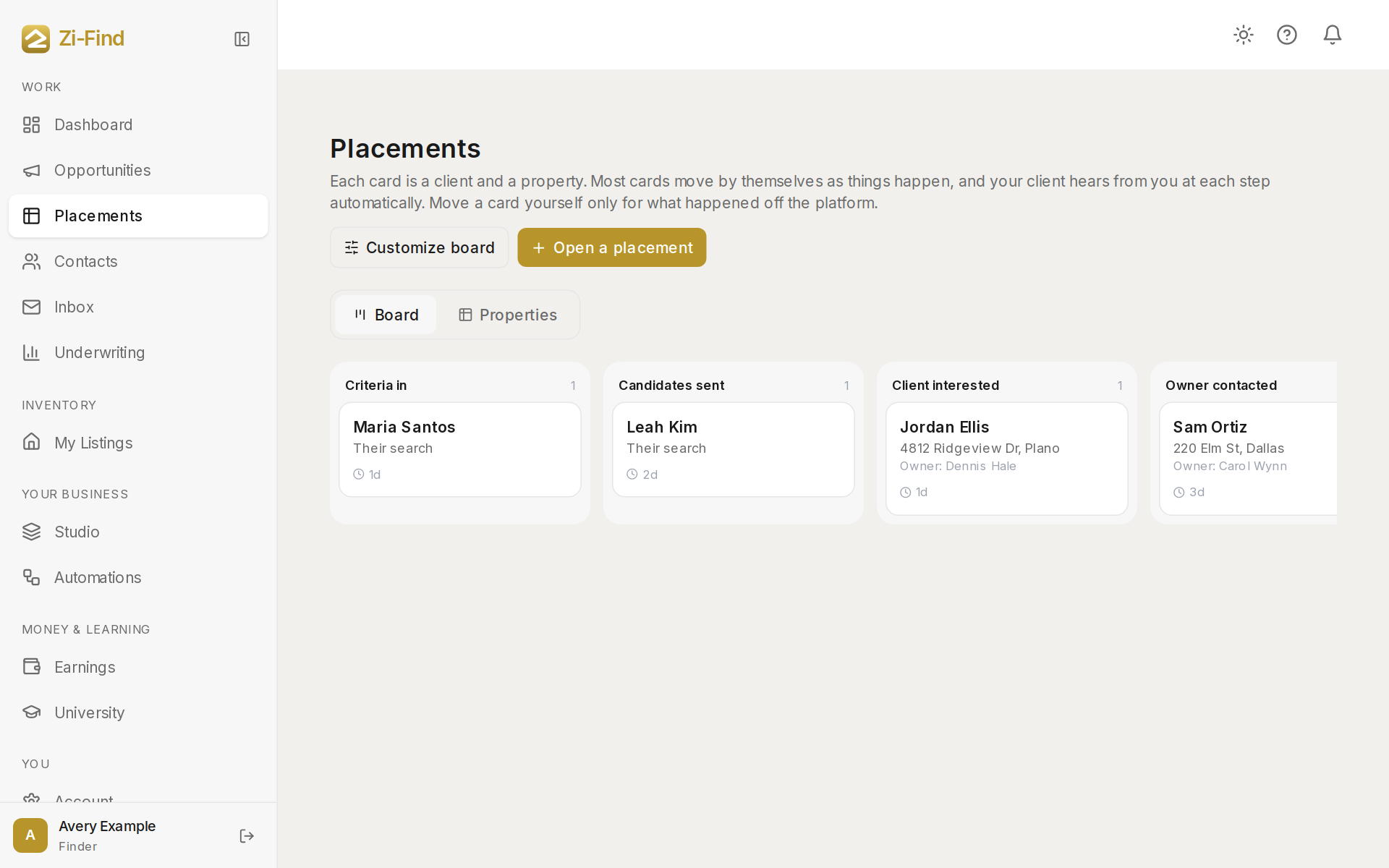
Placements puts every client and property on one board, from what they're looking for to a signed lease. Each card is one client and one property — or, before there's a property, their search. Most cards move by themselves as things happen, and your client hears from you at each step automatically.
The stages
Columns run left to right:
- Criteria in — you know what they're looking for.
- Candidates sent — you've picked properties for them.
- Client interested — they've asked about a specific property.
- Owner contacted — you're talking to the owner.
- Approved in writing — the owner has agreed in writing to the sublease.
- Agreement signed — your client signed your agreement.
- Paid — your client paid you.
- Lease signed — the lease is signed and your client has confirmed it.
Only people you work with show here: your own clients, and operators whose Zi-Find request you took on or routed a find to. Lost cards are folded away at the bottom — click Show lost to see them.
What moves a card for you
- Filling in your flow or getting marketplace access opens a client's search at Criteria in. Taking on an operator's request opens theirs.
- Picking properties for a client moves them to Candidates sent. A client asking about a property opens a card for it at Client interested.
- Setting a property's status on the Properties tab to contacted or approved moves its card to Owner contacted or Approved in writing. A find you routed to an operator moves when they accept and when you mark it paid.
- A signature after approval moves the card to Agreement signed; a payment after that moves it to Paid.
Facts only ever move a card forward. If you moved a card back yourself, it stays where you put it. Nothing moves a card out of Lost, and only you can mark a lease signed.
Open a card
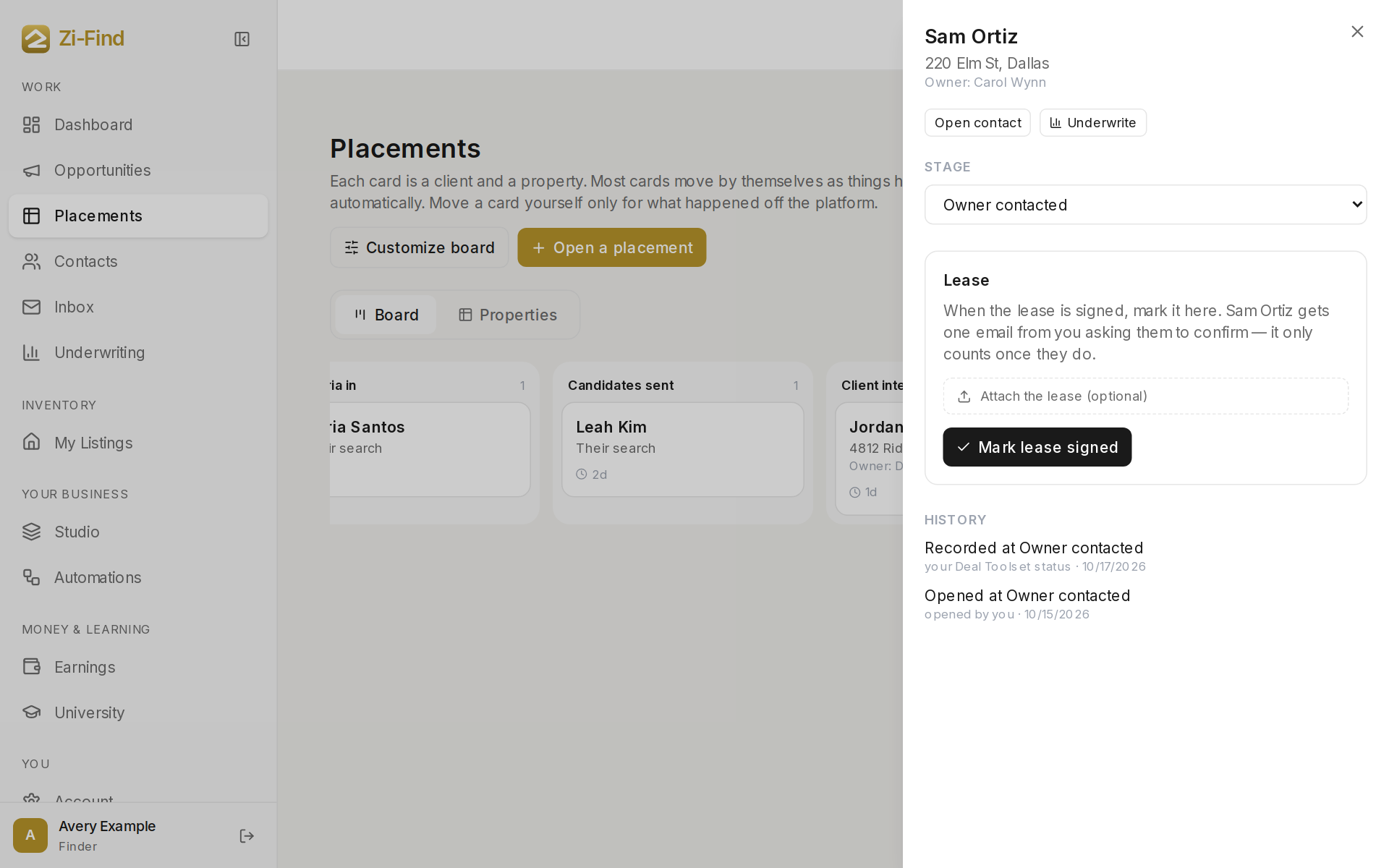
Click any card to open it. From there you can:
- Change the Stage to move it by hand. Do this for things that happened off the platform.
- Choose Lost, with an optional note on what happened, then Mark lost.
- Open contact to see the person's full record, or Underwrite the property.
- Mark the lease signed. See Mark a lease signed.
- Read the History — every move, who or what made it, and when.
Open a placement yourself
- Click Open a placement.
- Choose a client (or add one in Contacts first).
- Choose one of your properties, or "No property yet — their search".
- Pick the starting stage and click Open placement.
Good to know
- Each time a card enters a stage, your client can get an email from you. See Your client emails.
- The Properties tab next to Board is where you track properties and owners, and it's what moves cards to Owner contacted and Approved in writing. See Properties and underwriting.
- You can hide columns and add your own. See Customize your placements board.
- On a phone, Placements is one of the three tabs in the bottom bar.
Need more help?
Customers get support inside their account. Sign in, then open Help or the chat bubble in the corner.